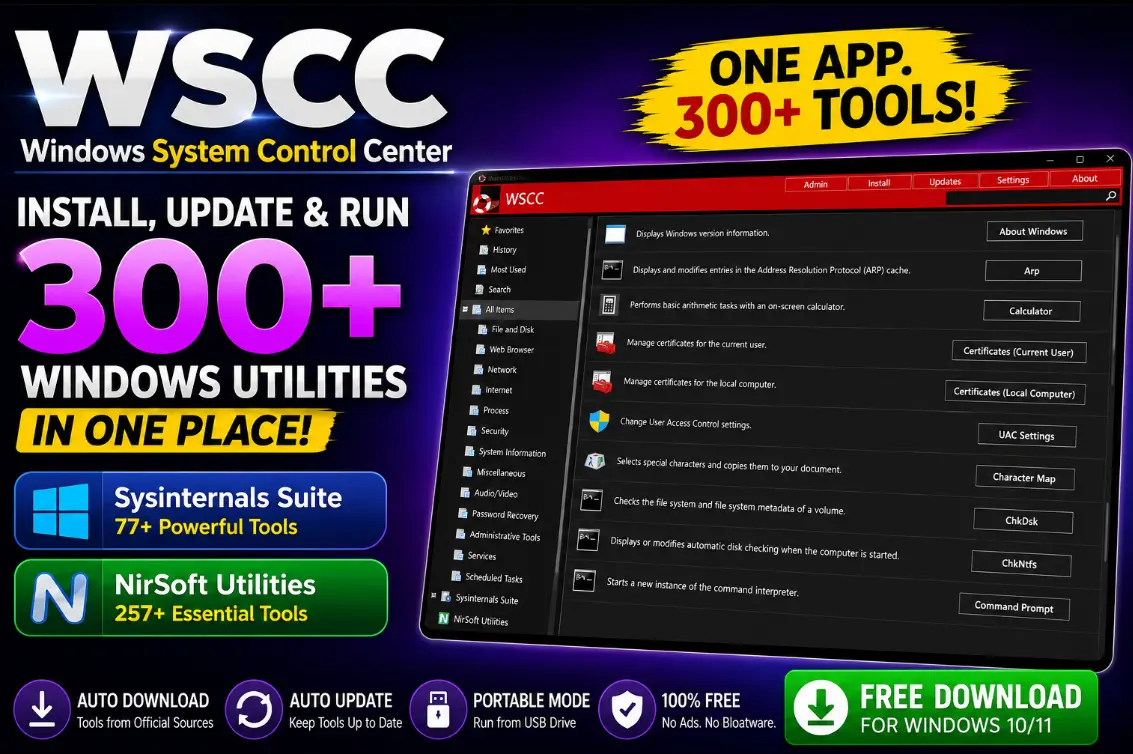
Are you tired of bookmarking a dozen different pages to get the latest version of your favorite Sysinternals or nirSoft tool? WSCC pulls them all into a single window, checks for updates itself, and even runs directly from a USB stick.
v10.0.3.8latest creation
5.3 MBdownload size
Freeno payment tier
portableUSB ready

✓ Quick Read
- What is this: A free launcher that organizes the Sysinternals suite, Nirsoft Utilities, and other well-known toolkits into one searchable app.
- why it matters: No more visiting dozens of sites to download or update small system tools one by one.
- Standout Feature: Built-in update manager that scans, downloads, and installs a large number of new versions.
- Bonus: Works in portable mode, so it can reside on a USB drive with zero installation.
- Security: Downloads come from official developer sources over HTTPS, no telemetry is sent from your device.
If you’ve ever found yourself digging through old bookmarks trying to remember where you downloaded that disk-checking tool, or constantly re-downloading Process Explorer because the version on your desktop is months old, WSCC was created with exactly that frustration in mind.
During our testing on Windows 11, WSCC automatically detected both SysInternal Suite and Nirsoft Utilities, then offered hundreds of tools to download directly from their official sources. The update scan completed in less than a minute, making it much faster than downloading each utility one by one from different websites.
What exactly is WSCC?
WSCC stands for Windows System Control Center, and it is a small, free Windows application created by a developer called Kirisoft. Rather than being a tool itself, it acts like a librarian for tools: It gathers some of the most respected utility collections in the Windows world and gives them a shared home with consistent categories, search, and one-click launching.
Open it up and you’ll find everything sorted into folders like File & Disk, Network, Process, Security, System Information and more – with functions ranging from checking Windows version details to digging up ARP cache entries or running a quick on-screen calculator.
Sysinternals Suite and Nirsoft Utilities Explained
The real value of this Sysinternals Suite manager comes from the two heavyweight toolkits it plugs into out of the box, turning WSCC into one of the more complete Windows admin tools available for free.
SysInternals Suite
This is Microsoft’s own bundle of advanced diagnostic and troubleshooting tools, the kind that IT professionals reach for when they need a thorough check of something on a Windows machine. Inside WSCC, the Sysinternals collection brings 77 different apps, including familiar names like Process Explorer, Autoruns, AccessChk, and Active Directory Explorer.
Nirsoft Utilities
Over the years Nirsoft has built a reputation for small, lightweight, no-nonsense tools that each do one thing well, whether it’s reading network adapter details, extracting a URL from a webpage, or recovering a forgotten password. WSCC lists 257 of these utilities, making it the larger of the two collections inside the app.
In total, there are over 300 tools available from a single search bar without the need to remember which website hosts which tool.
How Update Manager saves you time
Small utility apps like this get updated frequently, sometimes every few weeks, and manually keeping track of version numbers causes them to become outdated faster. WSCC’s Update Manager handles that difficult task by scanning your installed tools, comparing them with the latest releases, and listing exactly what has changed.
On a fresh setup, don’t be surprised if it reports a few hundred items ready to use. The list shows the tool’s name, author, your current version vs. the newer one, file size, and even a SHA256 checksum for anyone who wants to verify file integrity before installing.
You can choose exactly which tools to grab, click install and away you go while WSCC brings everything up in the background.
| what would you normally do | What does WSCC do instead |
|---|---|
| Visit each developer’s website separately | Lists every tool inside an app |
| Check manually for new versions | Scans and flags update automatically |
| Download installer one by one | Batch downloads and installs selected tools |
| Hope the source is legitimate | Pulls files from official developer sites over HTTPS |
How to Install WSCC (Full Install or Portable Mode)
Setup is short and gives you a choice right at the start: a full install that adds WSCC to your Windows Apps and Features list like any regular program, or WSCC Portable mode, which lets the app run from a folder or USB drive without touching your system’s installed programs list. Both options are part of the same WSCC download, so you don’t need a separate package for one.
The portable route is worth considering for people who fix computers for friends, family, or customers. Put WSCC on a USB stick, plug it into whatever machine needs attention, and you’ll get instant access to a curated toolbox without having to install a single thing on someone else’s PC.
First Launch: Establishment of WSCC
When you first open WSCC, a simple welcome screen explains in one line what the app does, then lets you click Start to get started. From there, WSCC checks for toolkits you want to use; If you have not previously installed Sysinternals or nirSoft tools, it will prompt you to add those archives.
For most users, this is the only setup decision that matters: Choose the collection you want, let WSCC drag you into the tool list, and you’ll be browsing categorized utilities within a few minutes.
Other useful WSCC features
Besides the headline Update Manager, there are several little touches that make daily use of this Windows System Control Center download feel polished rather than useless:
- Favorite – Pin the diagnostic tools and troubleshooting tools you access frequently so they’re a click away.
- Search – Type a few letters to quickly filter the entire tool list instead of scrolling through categories.
- most used – A running list of whatever utilities you actually open the most.
- History – Quickly return to the tool you launched in the previous session.
- run as administrator – Launch advanced tools directly without manually right-clicking on an executable.
- categories – Everything is logically grouped under headings like Network, Security, and Process, so free Windows utilities don’t get buried in a long list.
- Equipment Description – A short description is given next to each entry, so you know what a utility does before you open it.
- command line support – Multiple tools can be triggered with parameters for scripting or automation.
- export settings – Move your favourites, layouts and preferences to another machine.
- multiple utility suites – Beyond Sysinternals and irSoft, WSCC can manage other accredited collections under one roof.
Is WSCC safe to use?
It’s a fair question, since the app touches a lot of system-level tools. According to the developer’s own documentation, files are taken from the official pages of the original creators rather than third-party mirrors, transfers occur over HTTPS, and the app performs basic integrity checks on everything it downloads. WSCC also says it does not collect or transmit telemetry, with the update check running entirely on your own machine.
That said, security with WSCC really depends on how you use the tools inside it, not the launcher itself. Many of the bundled utilities are intended for advanced diagnostics, registry inspection, or service management, and will have real consequences if misused.
A quick word of caution for beginners
If you’re new to Windows internals, ease into it. Stick to simple, descriptive tools at first, read what each of them actually does before you run it, and stay away from anything related to the registry, startup entries, or system services until you’re confident about the results. WSCC hosts powerful tools, but that doesn’t make them beginner-proof in itself.
Techno360’s decision
WSCC earns its place on any power user’s PC by solving an annoying, recurring problem: keeping dozens of small utilities running without manual hassle. It’s lightweight, free and respects your time with batch updates and portable mode.
✅ What we liked
- One dashboard for 300+ trusted tools
- Really useful bulk update manager
- Portable mode does not require any installation
- No telemetry, official-source download
⚠Take care
- Some bundled tools are advanced, not beginner-friendly
- Initial setup can list hundreds of updates at once
- Best suited for users comfortable with system utilities
Frequently Asked Questions
Is WSCC free to use?
Yes. WSCC is completely free, developed by Kirisoft, and does not bundle any paid add-ons or trial restrictions.
Does WSCC automatically install Sysinternals and NandSoft tools?
WSCC figures out which collections you want to use, such as the SysInternals suite or Nirsoft Utilities, then downloads the individual tools directly from their official sources so you don’t have to search for each one separately.
Can I run WSCC without installing it on my PC?
Yes. During setup you can choose portable mode instead of a full install, which lets you run WSCC from a USB drive without adding in Windows apps and features.
Does WSCC collect personal data or telemetry?
According to its official documentation, WSCC does not send telemetry, and update checks occur locally on your own device.
Is WSCC safe to use for beginners?
WSCC itself is secure, but many of the tools it hosts are advanced system utilities. Beginners should stick to simple tasks at first and avoid touching the registry, services, or startup settings until they understand what a tool does.
Are you looking for more ways to keep your Windows setup organized and organized? Check out our roundup of free Windows software and our guides to lightweight system utilities on Techno360.