By Ramakanth · Techno360 · Updated September 22, 2026 · Tested on a Windows 11 laptop for a week
💧 Rain Cleaner, in one breath
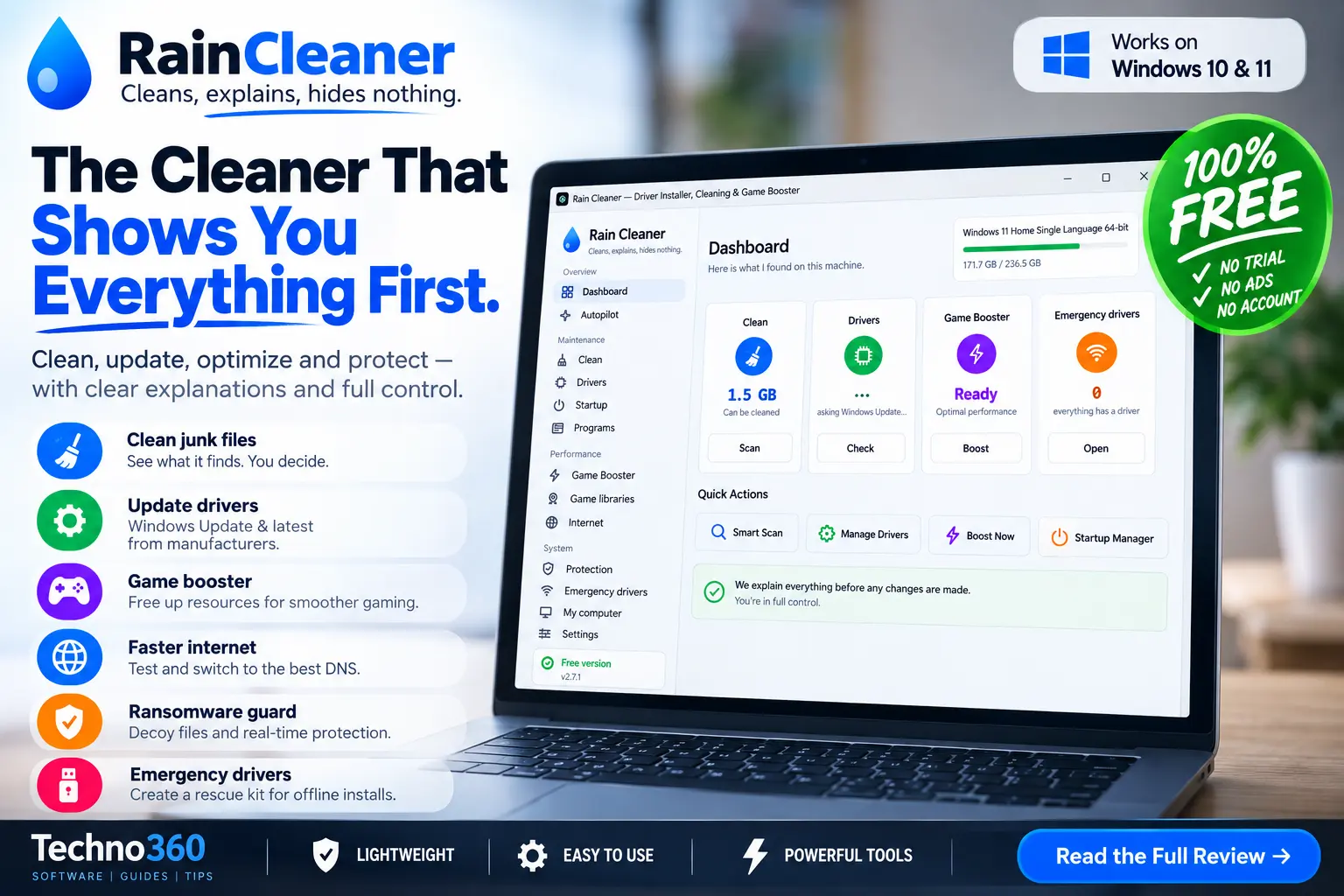
Most cleanup apps hand you a giant button and a scary number. Rain Cleaner does the opposite — it lays out a plain list of what it found, how big each thing is, and why it’s safe to remove, then waits for your tick. It also updates drivers, frees up muscle for gaming, benchmarks your DNS, and keeps a decoy watch for ransomware. All of it is free, with no account, no trial timer, and no ads.

I’ve tested plenty of “one-click” Windows cleaners over the years, and many share the same weakness: they make the cleanup decision for you. That’s the pitch behind this Rain Cleaner review — a young Windows utility from developer T. Vasilev that shows what it found, explains why an item can go, and then lets you decide. It sits in the same corner of the shelf as picks from our 35 best free PC programs of 2026 roundup: light, focused, and built to do a handful of jobs well instead of drowning you in twenty tabs of features you’ll never open.
⚡ Quick Read — 30 seconds
- What it is: a free Windows 10 & 11 cleaner that bundles a driver installer, a game mode, a DNS tester and a ransomware guard.
- Best for: anyone who wants a tidy PC but hates tools that delete things without asking.
- The hook: every finding shows its size, a “Why?” note, and a safety label — nothing goes until you approve it.
- Drivers: updates can come through Windows Update, while newer manufacturer releases are linked from the maker’s own site; a restore point and driver backup are made before installation.
- Price: completely free right now. A Pro tier is flagged as “coming soon,” but everything is unlocked until it lands.
- Version tested: 2.7.1 · 65 MB · installer or portable.
What exactly is Rain Cleaner?
Rain Cleaner is a maintenance suite for Windows 10 and 11 (server editions included) that folds several jobs into one tidy window. The tagline the developer uses is that it cleans and explains without hiding anything — and after a week of testing, the interface and workflow largely matched that description. The left rail is grouped into sensible buckets: an Overview section with the Dashboard and Autopilot, a Maintenance block for cleaning, drivers, startup and installed programs, a Performance block with the game booster and internet tools, and a System block holding ransomware protection, an offline driver rescue, hardware info and settings. Thirteen screens in total, all in a modern flat interface that a first-timer can read without a manual. One thing worth saying up front: this is not an antivirus, and it doesn’t pretend to be. It runs happily beside Windows Defender or whatever else you use, and stays in its lane.

If fiddling with checkboxes isn’t your idea of a good time, Autopilot is the shortcut. It runs a sweep of the whole machine, then does the genuinely safe housekeeping on its own and stops the moment it hits a choice that ought to be yours — a driver install, say, or removing something that isn’t obviously junk. You get two doors: run only the safe part, or check everything and decide as you go. On my test laptop it flagged around 1.7 GB worth of reviewable clutter, two driver updates, and confirmed every device already had a working driver. Handy for a family member’s PC you maintain from a distance and don’t want to babysit.
Cleaning that shows its receipts

This is the part that sold me. The Clean screen doesn’t just say “junk: 1.5 GB.” It breaks the pile into named items — browser cache, leftover Windows Update packages, temporary folders used by services, your profile’s temp directory — and next to each one sits its exact size, a colour-coded label (Safe versus Mild), and a “Why?” button that explains in one sentence what the item is and what you actually lose by clearing it. That labelling matters. The genuinely safe stuff comes pre-ticked; the mildly inconvenient items (browser cache that’ll slow your first page loads, update packages you might want to keep) are left unticked so you make the call. There’s a Preview option too, so you can see what’s on the chopping block before you commit. It’s the same read-before-you-wipe philosophy I liked in the modern FluentCleaner for Windows 11, with a bit more hand-holding on top.
Drivers, straight from Microsoft’s shelf

Driver updaters have earned a shady reputation, and rightly so — plenty of them repackage random driver “packs” of dubious origin. Rain Cleaner sidesteps that entirely. For updates it can apply, it uses the drivers offered through Windows Update — the ones Microsoft has certified — and for newer manufacturer releases it links you to the maker’s own page and tool (AMD, NVIDIA, Lenovo, and so on) rather than hosting or repackaging the file itself. That’s exactly what the Drivers screen shows, split into “Offered by Windows Update” and “From the manufacturer (the newest).” The safety net is the good bit: before it installs anything, it creates a system restore point and keeps a copy of the current driver. If a new one misbehaves, you’re back to the old one in seconds. You can also back up all your drivers on demand — useful before a clean Windows reinstall.
Game mode: borrow the resources, then hand them back

With a single click, the Game Booster flips your power plan, switches on Windows’ own scheduling profile for games, and eases off background chatter — browsers, cloud sync, chat apps. There’s also an option to give a running game higher priority. The interface makes a point of not suspending or killing anything; the changes it describes are nudges rather than sledgehammers. What I liked is how it frames the whole thing: Rain Cleaner says every change is written down before it’s applied and can be undone in one click, and the developer notes the boost is restored to your previous state even after a power cut. I didn’t stage a power failure to test that last claim, but the reversible-by-design approach is the right instinct. If you like the idea of see-everything tweaking, it pairs nicely with a dedicated tuner like the open-source Kudu system maintenance tool.
The DNS tester nobody expected

This was a pleasant surprise. The Internet screen is refreshingly blunt — it says plainly that no app can make your line faster than it physically is, and anyone claiming otherwise is selling you smoke. What it can do is measure the bits that actually respond to tuning: your latency to the router and out to the web, your jitter, and which public DNS resolver answers quickest from your connection. It fires five real queries at each provider and shows the median. On my broadband, Cloudflare’s 1.1.1.1 came in fastest at around 13 ms, comfortably ahead of the Google resolver I’d been using. One button switches you over, another puts everything back. If you want to go deeper on which resolver to pick — and why some folks are switching right now — our guide to the best free DNS alternatives for 2026 is a good companion read.
Ransomware protection and an offline rescue kit

Two System tools round things out. The Protection module plants decoy files around your folders and keeps a background watch. If a program starts encrypting them — the classic ransomware fingerprint — the interface offers to stop the offending process on the spot, take a disk snapshot, and log what tripped the alarm and why. In my test the guard flagged a decoy ransom note and recorded the event, and it also keeps an eye on your BitLocker status. Be clear on what this is, though: Rain Cleaner is not an antivirus or endpoint-security suite. Its Protection module is best understood as an additional ransomware-focused monitoring layer built on decoy files and suspicious file activity — a useful free early-warning net, not a replacement for real malware protection.

The Emergency Drivers screen solves the oldest chicken-and-egg problem in PC repair: a freshly reinstalled Windows with no network driver, and therefore no way to download a network driver. You can try Windows’ built-in drivers, install from a folder, or build a rescue kit on a USB stick from a working machine to carry over to the broken one. That makes it genuinely useful when you’re troubleshooting a fresh Windows install without a working network connection.
Startup control and the free-versus-Pro question

The Startup manager does the same job as Task Manager’s startup tab but with clearer wording, and it marks some system-related entries as “left alone” — the Microsoft Edge launcher was flagged that way on my test machine. There’s also a Programs list for uninstalls and a hardware summary under “My computer.”

About that Pro tier: Settings shows a “coming soon” card, and the developer is upfront that until it actually launches, nothing is locked, nothing expires, and there’s no key to hunt for. You also get a scheduler for automatic cleaning and six interface languages — Bulgarian, English, German, Spanish, Russian and Turkish. Whether the future Pro version stays worth it is a question for another day; for now, you lose nothing by trying the free build.
How I tested it
I ran version 2.7.1 on a Windows 11 laptop over roughly a week — the same machine I use for everyday work — putting each module through a real pass rather than a quick glance. I let it clean, checked the driver source claims, benchmarked DNS against my live connection, ran the game booster around a couple of sessions, and deliberately tripped the ransomware decoy to see the guard react. The screenshots in this piece are straight from that run.
The downsides
- It’s young. A recent tool with a small footprint means fewer independent eyes on it than a decade-old suite. Nothing alarming surfaced for me, but it’s worth noting.
- No registry cleaner or deep privacy shredder. If you specifically want registry surgery or secure file wiping, this isn’t that tool. That’s a defensible design choice rather than an oversight, but it does narrow who it’s for.
- The Pro tier is a wildcard. Everything’s free today; what moves behind a paywall later is unknown.
- Not a security replacement. The ransomware guard is an extra monitoring layer, not a substitute for real antivirus.
Who should download it?
If you like knowing precisely what a maintenance tool is about to do, Rain Cleaner is worth a look. It suits the cautious tinkerer, the person maintaining a relative’s PC, and anyone tired of “optimizers” that treat the delete key as a first resort. Power users chasing registry-level control will want more; everyone else gets a clean, free tool that stays out of your way.
✅ The Verdict — 4.3 / 5
Rain Cleaner earns its place by doing the routine stuff transparently. The read-first cleaning, the Windows-Update-based driver approach with backups, the reversible game mode, and the useful DNS tester add up to a tool that keeps you in the decision seat. It’s free, it’s light, and it explains what it’s doing at each step. The main caveats are its youth and the unknown shape of a future Pro tier — neither of which costs you anything to find out about today.
How the 4.3 breaks down (equal weighting across six editorial criteria): transparency & control 4.8, cleaning 4.5, ease of use 4.5, drivers & rescue 4.3, DNS & game tools 4.2, security depth 3.4. The lower security score reflects the Protection module’s narrower ransomware-monitoring role rather than full antivirus/endpoint protection. The six scores average to 4.28, rounded to 4.3.
Bottom line: a solid pick for anyone who wants a cleaner PC without handing over control to get it.
Rain Cleaner is free for Windows 10 and 11, offered as an installer or a portable download, and runs alongside your existing antivirus. Version reviewed: 2.7.1. Developer: T. Vasilev.
Discover more from Techno360
Subscribe to get the latest posts sent to your email.