
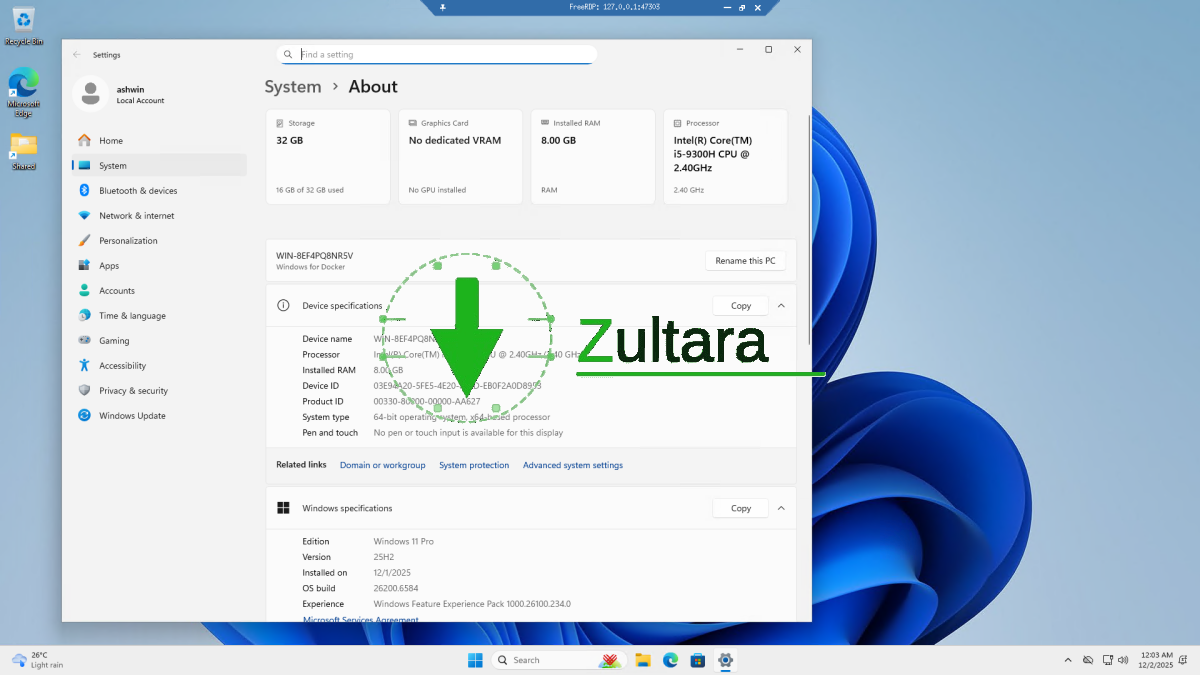
WinBoat is a free open-source tool designed to run Windows applications on Linux with high compatibility and a “native” experience, acting as an alternative to Wine or full virtual machines. It works by using a containerized, lightweight Windows environment (usually via Docker) to run applications and then uses FreeRDP to display those applications as individual windows on the Linux desktop.
Linux is fine for gaming, Wine and Proton have come a long way. But what about Windows apps that don’t play well with Wine?
WinBoat aims to fix just that. It’s not just an emulator, it’s a virtual machine that uses a containerized approach in Docker or Podman.
winbot requirements
These are the system requirements of WinBoat:
- RAM: at least 4 GB RAM
- CPU: At least 2 CPU threads
- Storage: At least 32 GB of free space on your hard drive.
It is equivalent to a virtual machine. I think it’s the opposite of Windows Subsystem for Linux (WSL). So this is LSW?
Anyway, you can download the app from here GitHub or from https://www.winboat.app/. It is free and open source under the MIT license.
WinBoat is an Electron app. Yes, yes, I know! When you run the app, you will see a prerequisites screen. In my opinion this may be a hindrance for many users.

How to use Winbot?
The first thing you will need to do is enable KVM from your BIOS/UEFI for virtualization. I already have QEMU/KVM/Virt Manager which I use very rarely for Windows 11 VMs. Next, you need to install Docker and Docker Compose v2. After that you need to add your user to the Docker group, and also setup FreeRDP for the remote desktop. There are a lot of things to set this up, and some of it is complicated. I think these may scare users away from trying the app. Luckily, you can simply click on one of the “How To” links, and it will help you find instructions for everything. They are mostly help documents hosted on Docker’s portal. WinBoat does not support Docker Desktop.
Since I am using Linux Mint, I followed instructions To install Docker on Ubuntu. This takes a little time, but once you have it set up, it should look like this.

Proceed with setting up the VM in WinBoat. You will be asked to select the version of Windows you want to use, and optionally select a custom ISO.

Set up a user account for Windows, customize virtual hardware, allow home directory sharing (if necessary). Once you finalize the options, WinBoat will begin installing Windows into the container. You can also check the progress using your web browser.
Note: The installation failed once for me, but it worked when I retried it.

WinBoat will boot into Windows, except you won’t see a visual representation of Windows. The Home tab is where you can pause the emulation, pause it (turn it off), and also check the CPU, RAM, and disk usage. Nothing fancy here, let’s move on to the Apps tab. Here’s the interesting thing. Click on an app here to launch it, for example File Explorer, Task Manager, Notepad, etc. They open like a native app on Linux, as there is no Windows GUI. It’s good in a way. You can also access the Windows desktop, of course.

As far as installing apps goes, simply download a setup file (for example an EXE) for the program you want and install it as you normally would. You can install whatever you want. The program will appear in WinBoat’s Apps tab and you can launch it.

I chose to test some free Windows-exclusive apps that I had used before, namely Notepad++, ShareX. But I have seen many users reporting that they were able to run Adobe Photoshop, Microsoft Office on their Linux machines with WinBoat.

Switch to the Configuration tab in WinBoat to customize the virtual hardware, or to manage the app’s settings such as display scaling, app scaling, multi-monitor support, smartcard passthrough, RDP monitoring, etc.

In terms of performance, WinBoat’s desktop experience was slower than my Virt Manager setup. But the apps worked. The important thing is, it is a functional virtual machine. I don’t think it’s a good idea to keep the container running all the time, using system resources. Turn it off when you don’t need it.

Vine is far more mature (in a reasonable sense), and its support is far better. But it’s nice to have an option, even if setting it up isn’t particularly user-friendly. WinBoat may be useful for Windows 10 users who are on the fence about switching to Linux, but need to run some Windows apps for work or personal use.
More than a billion users are still using Windows 10, half of these PCs do not meet the requirements to upgrade to Windows 11.